AnyShare sends files from one X-plore to another X-plore, over the local network or over the Internet. You need X-plore and an Internet connection on both devices, plus a short sharing code. The sharing is offered for a few minutes, during which the other device must connect.
How the devices connect
On the same network, the files go directly between the devices (typically over Wi-Fi), which is the fastest way. On different networks, X-plore first tries a direct connection over the Internet. If a network blocks it (some mobile and company networks do), the files can pass through our server instead. That way is available when one of the two devices has made a donation (3 beers or more), for files up to 100 MB in total.
Send files
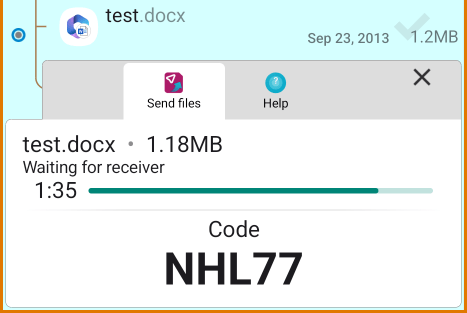
Select one or more files, or long-click a file, then choose AnyShare Send. X-plore shows a sharing code like 2026-LCG and a countdown. Tell the code to the other person, or type it yourself on your other device.
To send all files of a folder, long-click the folder and choose AnyShare Send. Subfolders are not included.
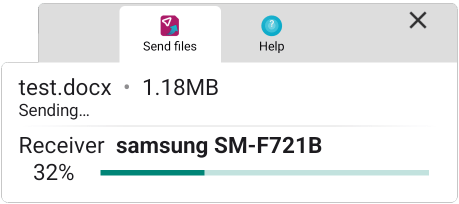
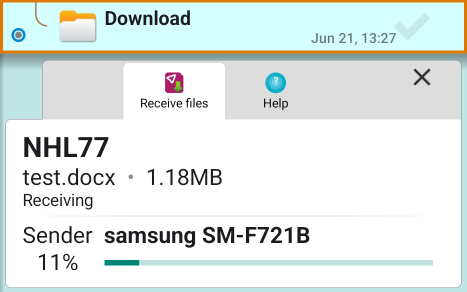
When the receiver connects, the dialog shows their device name and progress.
To cancel, close the dialog or use Cancel in the status bar notification.
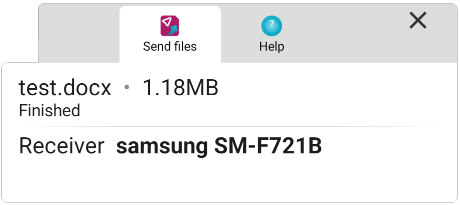
When sending finishes, it shows a summary, then closes after a few seconds.
Receive files
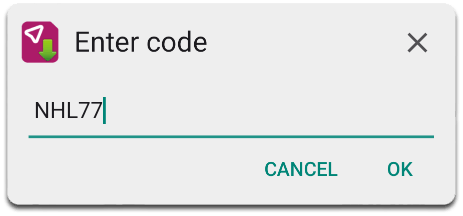
Open the destination folder, or long-click a folder, and choose AnyShare Receive. Type the code.
All shared files are saved in the folder, and an existing file is never overwritten.
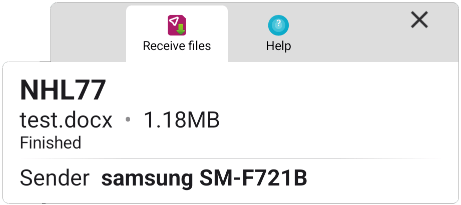
When receiving completes, the dialog shows this, and dismisses itself after a few seconds.
You can also follow the progress in the status bar notification.
Security
Your files are encrypted all the way from one device to the other. Nobody in between can read them, not even our server, and nothing is stored there.
Only someone with the exact code can receive your files.